
User-Delegated BigQuery Access Through Gemini Enterprise via OAuth
OAuth-Based User Identity Preservation for Gemini BigQuery Access & Implementation “On-Behalf-Of” in AI agent authentication


The Problem
A large corporation has users authenticated through Azure Entra ID who need to use Gemini Enterprise (“Data insights Agents”) to query their BigQuery databases using natural language.
The challenge is that Gemini Enterprise sits in one Google Cloud account while BigQuery datasets live in different accounts across the organization.
The critical requirement is ensuring that when users ask Gemini to query data, each person only sees the data they’re authorized to access - not their colleague’s data, not everything, just their own permitted datasets.
The architecture must bridge 3 separate identity and authorization systems:
Azure AD (where users live),
Gemini Enterprise (where AI Agents happens),
…and BigQuery (where data lives), while preserving individual user permissions and accountability throughout the entire data access chain.
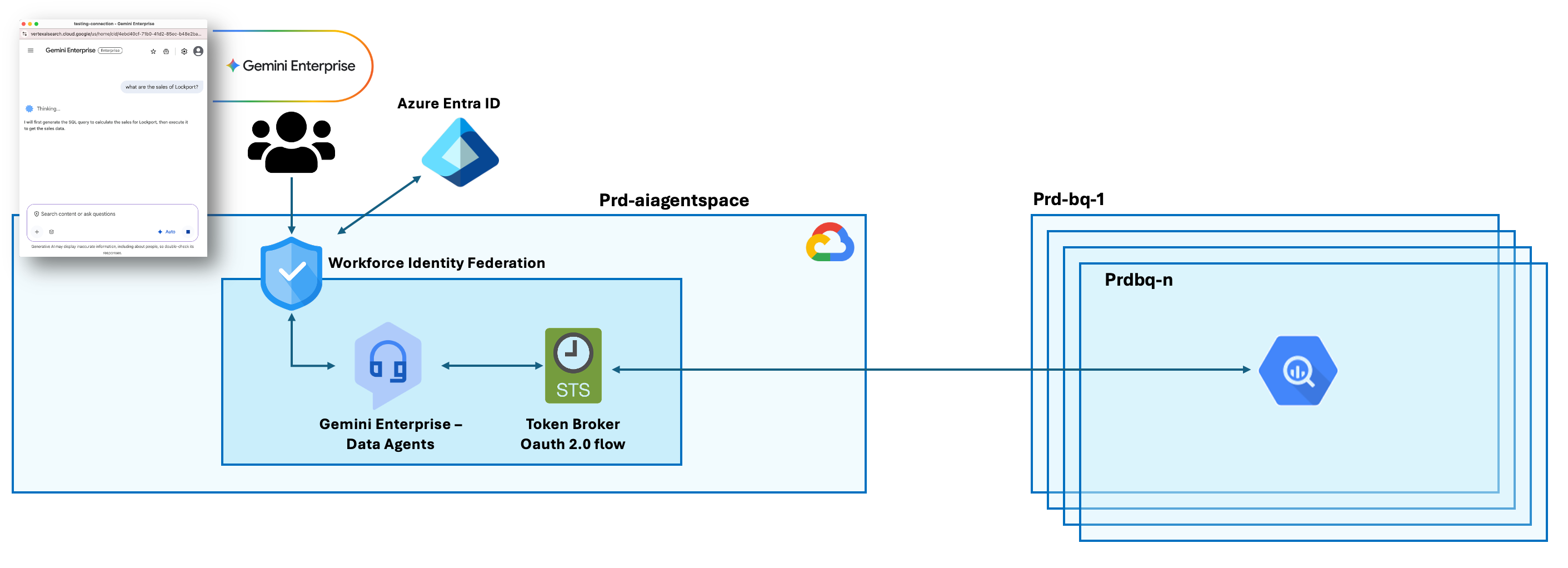
Additionally, the company must maintain a complete audit trail showing exactly which user accessed, which data and when, to meet compliance and security requirements.
The Vision
Imagine if anyone could ask questions in plain English:
“Show me last quarter’s sales by region”
“What are our top performing products?”
“Compare customer retention across markets”
The Solution
An OAuth user delegation architecture will let authorize Gemini to access BigQuery on a user behalf using your BigQuery permissions.
OAuth user delegation in Gemini Enterprise refers to the process where an AI Data Insights agent (or it could be an application) acts on behalf of a signed-in user, using the user’s delegated permissions to access resources (BigQuery) (or perform actions within an enterprise environment).
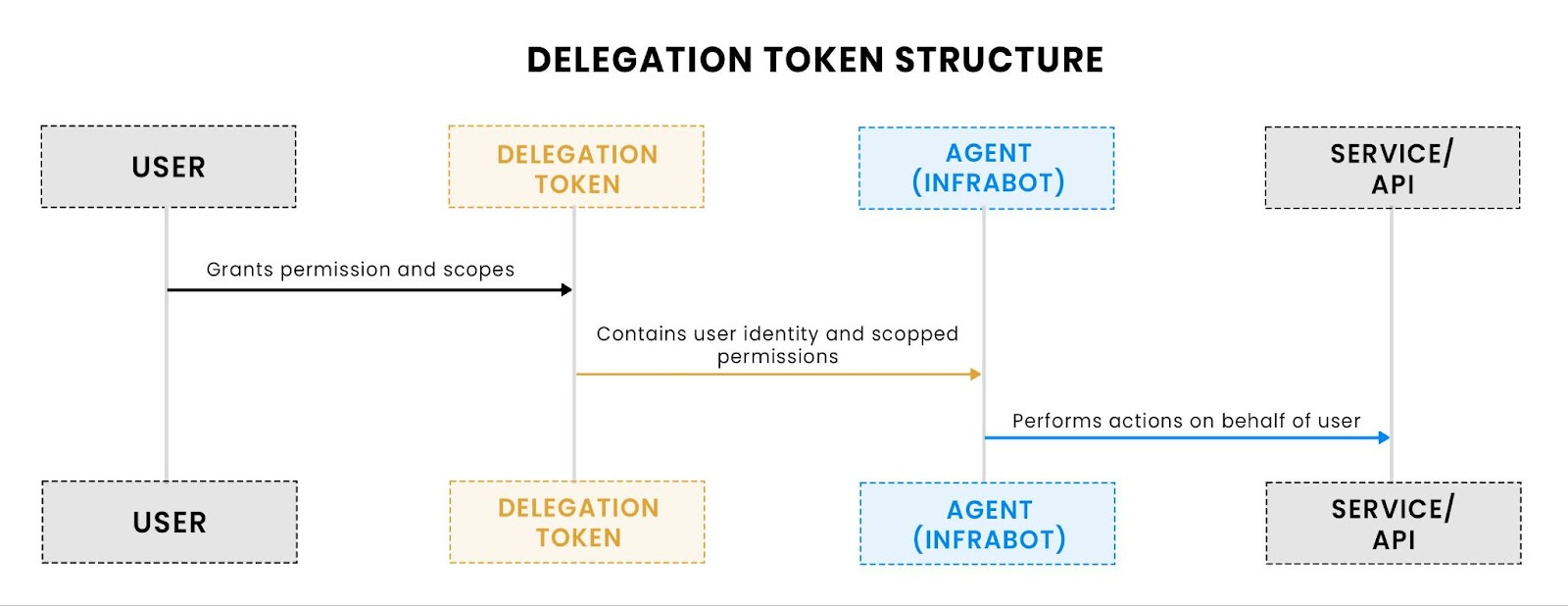
User grants permissions to the agent via a structured delegation token.
The delegation token encodes both the user and the agent identity, along with the permitted scopes.
Data Insights Agent uses this token to interact with BigQuery while acting strictly within the user’s delegated authority.
Understanding “On-Behalf-Of” in AI agent authentication
Gemini acts using the user’s delegated OAuth credentials (user-delegated access)
When a user in a corporate Azure Entra authenticates to Gemini Enterprise (Account A), Gemini obtains OAuth-level BigQuery permission (via an OAuth consent flow or via a Google short-lived token/service-account impersonation) and then calls the BigQuery APIs on behalf of that principal.
Access is then governed by Google IAM roles (granted to the workforce-pool principal or to the user), OAuth scopes, and any org / dataset level policies (VPC-SC, Row/Column restrictions, CMEK). Audit logs show the effective principal that called BigQuery (service account or federated principal).
Gemini acts as an OAuth client that requests delegated access to BigQuery using the user’s credentials (via OAuth 2.0 authorization code flow).
Each query runs with the user’s IAM permissions, not a service account’s permissions. Row-level security is enforced by BigQuery evaluating the user’s identity from the OAuth token, not through an intermediary service account.
Gemini doesn’t have its own permissions to BigQuery. Instead, it borrows your permissions through a secure handoff process called OAuth. Think of it like giving someone your ID badge temporarily so they can swipe into a building on your behalf.
Gemini does NOT use a service account. It uses OAuth user delegation - the user’s own access token with their personal permissions.
What’s the user delegation?
OAuth user delegation is the process where a user lets one application (Gemini) securely use their credentials or permissions to access resources on another service (like BigQuery), on their behalf, without sharing passwords, often using a middle-tier service (like an AI agent) to pass identity and limited permissions through a token exchange (like OBO flow) to downstream APIs.
It enables secure, multi-layered access for modern apps and agents, ensuring only necessary permissions are granted.
The flow
Step 1: You Ask Gemini to Query Data
You type: “Show me the sales data from BigQuery”
Gemini says: “I need permission to access BigQuery on your behalf”
Step 2: Gemini Requests Your Permission (OAuth Flow Begins)
Gemini redirects you to Google’s authorization server
Google asks YOU: “Do you want to let Gemini Enterprise access your BigQuery data?”
This is the consent screen.
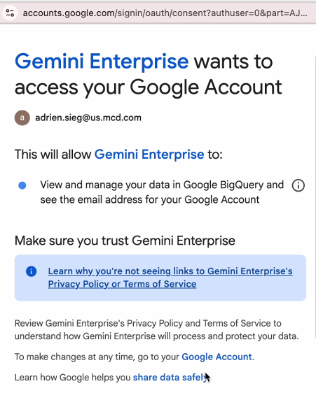
Step 3: You Grant Permission
You click “Allow”
This creates a special permission slip (called an authorization code) that says: “Adrien authorizes Gemini to act on his behalf for BigQuery”
This code is tied specifically to YOUR identity, not anyone else’s
Step 4: Gemini Exchanges the Code for Access Credentials
Gemini takes your authorization code to Google and says: “Adrien gave me permission, here’s proof”
Google validates and issues a token (like a temporary digital key)
This token contains YOUR identity: “This token belongs to adrien.sieg@us-mcd.com“
Step 5: Gemini Stores Your Token
Gemini saves this token with your name attached
When your colleague uses the same agent, they get their OWN separate token
Each user has their own unique token in Gemini’s secure storage
Step 6: Gemini Queries BigQuery Using YOUR Token
Gemini sends the SQL query to BigQuery
Gemini includes YOUR token in the request: “Authorization: Bearer [Adrien’s-Token]”
BigQuery receives the request
Step 7: BigQuery Identifies Who’s Really Asking
BigQuery looks at the token and asks Google: “Who does this token belong to?”
Google responds: “This is Adrien’s token”
BigQuery now knows: “This request is coming from Adrien, not from Gemini”
Step 8: BigQuery Checks YOUR Permissions
BigQuery checks: “What permissions does Adrien have?”
It looks at IAM policies: “Does Adrien have
bigquery.dataVieweron this dataset?”It finds: “Yes, Adrien has these roles via his workforce identity pool membership”
Step 9: BigQuery Enforces Row-Level Security Based on YOUR Identity
If row-level security is configured, BigQuery applies filters based on YOUR identity
For example: “Show only rows where region = Adrien’s assigned region”
The security rules see “adrien.sieg@us-mcd.com“ as the requester
Step 10: Results Returned Through Gemini
BigQuery executes the query with YOUR permissions
Results are sent back to Gemini
Gemini formats and displays the results to you
The audit log records: “adrien.sieg@us-mcd.com queried this data”
Key Concepts
Concept 1: Delegation, Not Impersonation
Gemini doesn’t pretend to be you. Gemini doesn’t have a service account with blanket access
Instead, you explicitly delegate YOUR access to Gemini temporarily. It’s like giving someone your house key vs. them having a master key
Concept 2: User-Level Token Isolation
Each user gets their own unique token
Your token = Your permissions vs. Colleague’s token = Colleague’s permissions
Concept 3: BigQuery Sees the Real User
From BigQuery’s perspective, it’s YOU making the request. BigQuery doesn’t see “Gemini” or a “service account”. BigQuery applies YOUR IAM roles and permissions. Row-level security filters are applied as if you queried directly
Concept 4: No Privilege Escalation
Gemini cannot access data you don’t have permission to see
If you can’t view a dataset directly, Gemini can’t view it on your behalf either
Your permissions are the ceiling; Gemini operates within that ceiling
Concept 5: Static Configuration, Dynamic Authorization
The OAuth setup (client ID, client secret) is configured once by admins
But authorization happens fresh for each user
Each user consents individually and gets individual tokens
Think of it like: one door (OAuth client), many keys (user tokens)
How to create a Data Insights agent?
https://docs.cloud.google.com/gemini/enterprise/docs/data-agent
The Authorization URI must be created this way:
https://accounts.google.com/o/oauth2/v2/auth?
client_id=CLIENT_ID &
redirect_uri=https%3A%2F%2Fvertexaisearch.cloud.google.com%2Fstatic%2Foauth%2Foauth.html &
scope=https%3A%2F%2Fwww.googleapis.com%2Fauth%2Fbigquery &
include_granted_scopes=true &
response_type=code &
access_type=offline &
prompt=consent
How to Add New BigQuery Tables to a User?
Option #1: You want ALL users in the workforce pool to access BigQuery in those projects.
So we have to grant all federated users access to BigQuery in Projects A, B, and C.
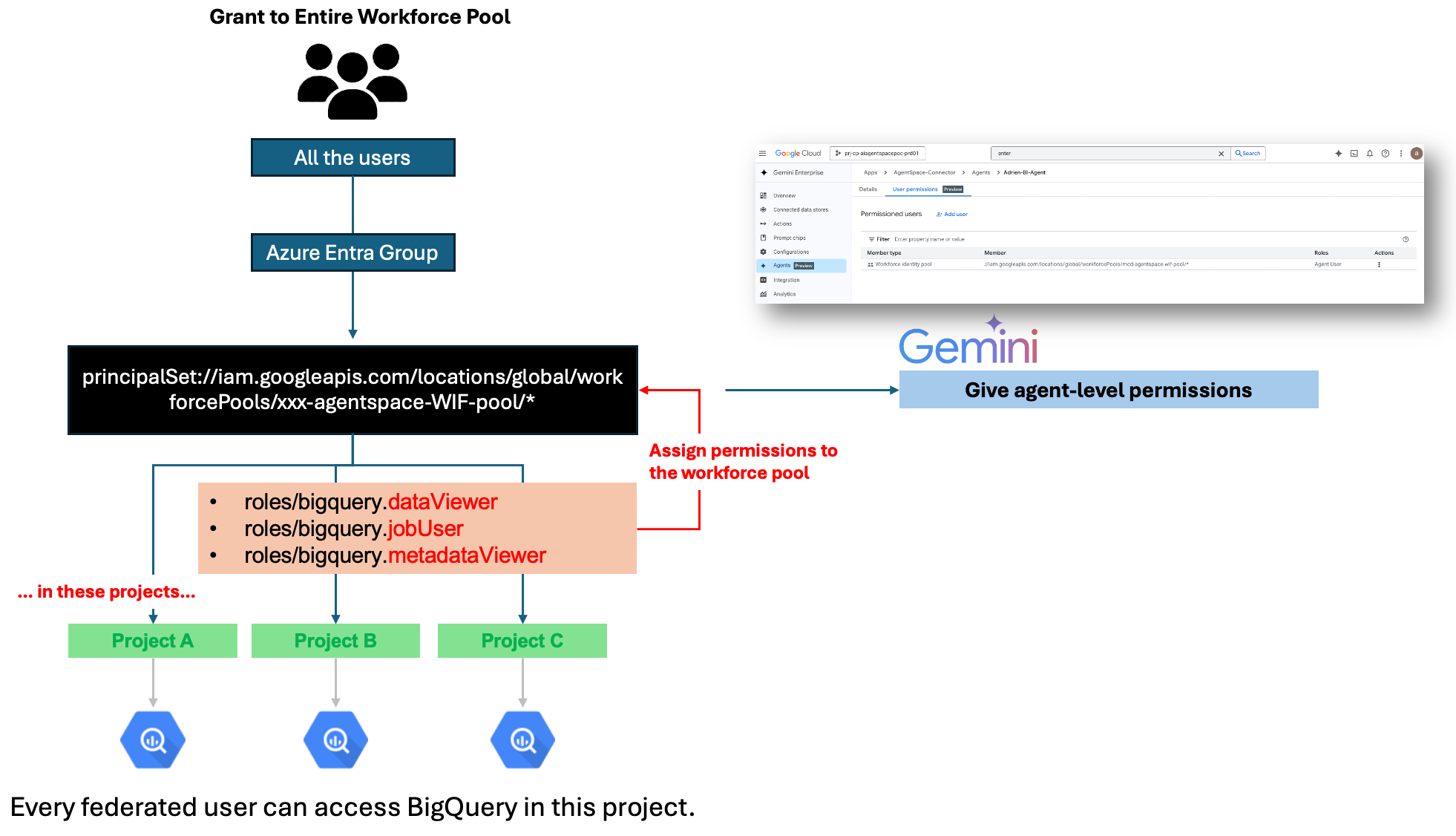
Don’t forget to grant the workforce pool permissions on the Agent-level permissions:
Agent: “Adrien-BI-Agent”
Permission: Agent User Granted to:    principalSet://iam.googleapis.com/locations/global/workforcePools/xxx-agentspace-WIF-pool/*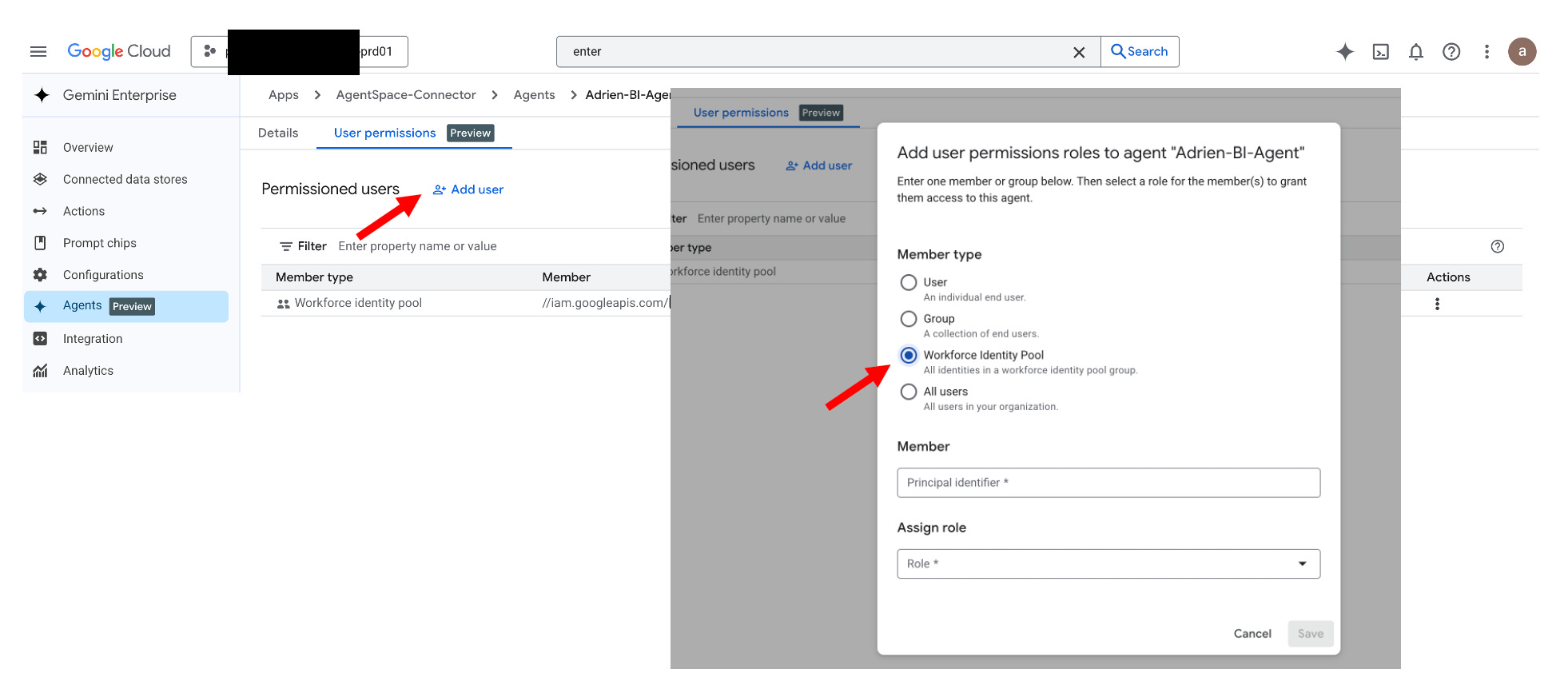
Option #2: Grant to Specific User (More Granular)
If only Adrien should access these tables - here is the approach
But first - my users do NOT have Google identities — how do I grant access to a single user? Even if your users don’t have Google accounts, Google still creates a unique federated identity credential for each user that looks like:
principal://iam.googleapis.com/locations/global/workforcePools/<pool>/subject/<Azure-user-object-id>
This means you can grant IAM roles to just one user. You just need their Azure Object ID, which is stable and unique.
# In project prj-cp-dagdwvws-prd01
gcloud projects add-iam-policy-binding prj-cp-dagdwvws-prd01 \
  --member=”principal://iam.googleapis.com/locations/global/workforcePools/mcd-agentspace-wif-pool/subject/adrien.sieg@company.com” \
  --role=”roles/bigquery.dataViewer”

gcloud projects add-iam-policy-binding prj-cp-dagdwvws-prd01 \
  --member=”principal://iam.googleapis.com/locations/global/workforcePools/mcd-agentspace-wif-pool/subject/adrien.sieg@company.com” \
  --role=”roles/bigquery.jobUser”

gcloud projects add-iam-policy-binding prj-cp-dagdwvws-prd01 \
  --member=”principal://iam.googleapis.com/locations/global/workforcePools/mcd-agentspace-wif-pool/subject/adrien.sieg@company.com” \
  --role=”roles/bigquery.metadataViewer”
Effect: Only Adrien can access BigQuery in this project.
Use when: Sensitive data with restricted access.
The Result
Your organization gets:
Democratized data access - Anyone can ask questions in plain English
Zero trust security - Every user’s permissions enforced
Complete auditability - Know exactly who accessed what
Seamless experience - No SQL required, instant insights
All while maintaining enterprise-grade security and compliance.